Inviting a user

Inviting a user

When inviting a user you need to decide whether they’re going to be a system admin or label user. 

A system admin can create Spaces and projects and assign other users to them. 

A label user can only work within the spaces and projects they’re assigned by a system admin. 

When inviting a user you need to decide whether they’re going to be a system admin or label user. 

A system admin can create Spaces and projects and assign other users to them. 

A label user can only work within the spaces and projects they’re assigned by a system admin. 

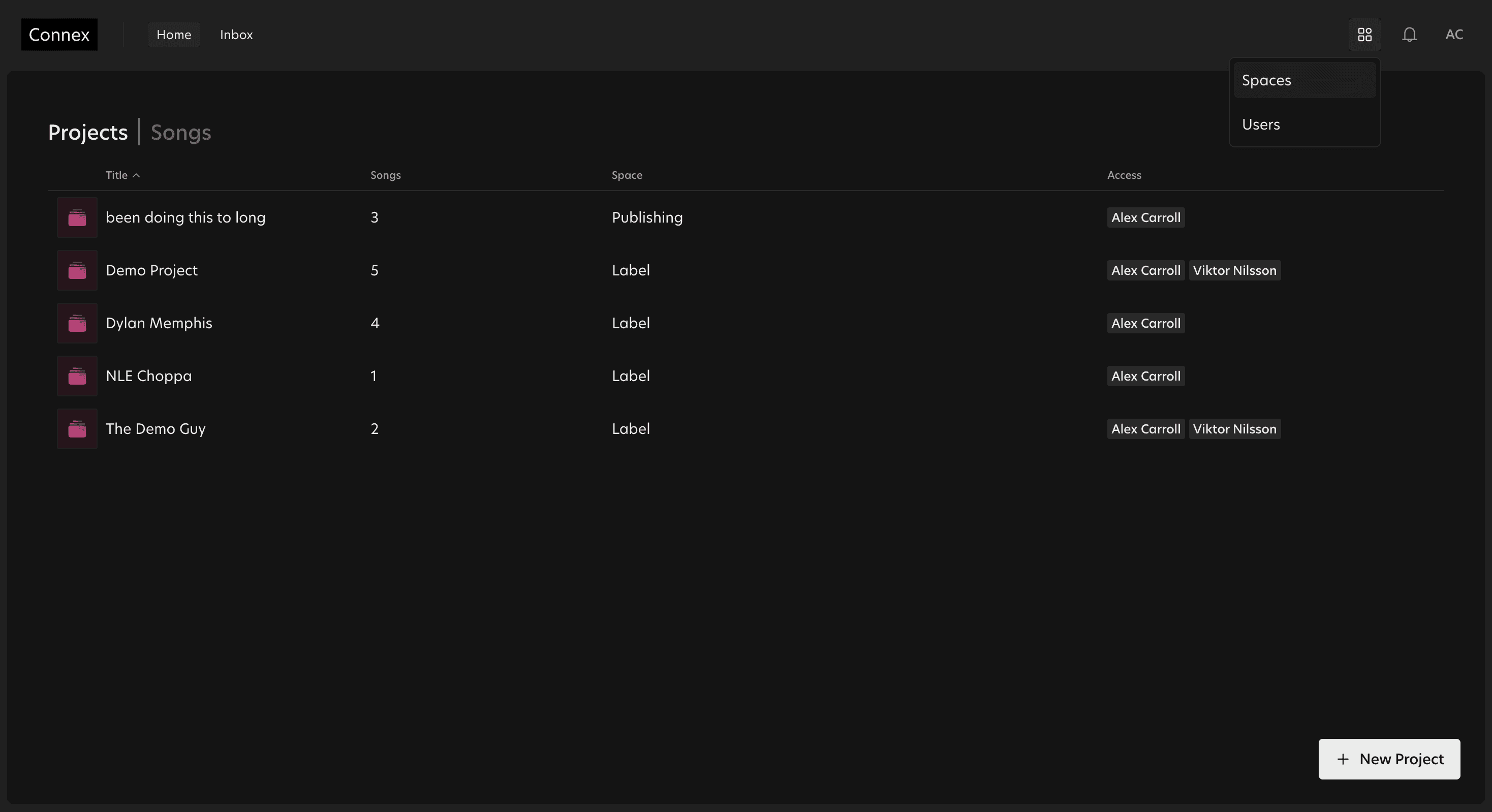
To invite a new user, go to the 4 square symbol and select users. 
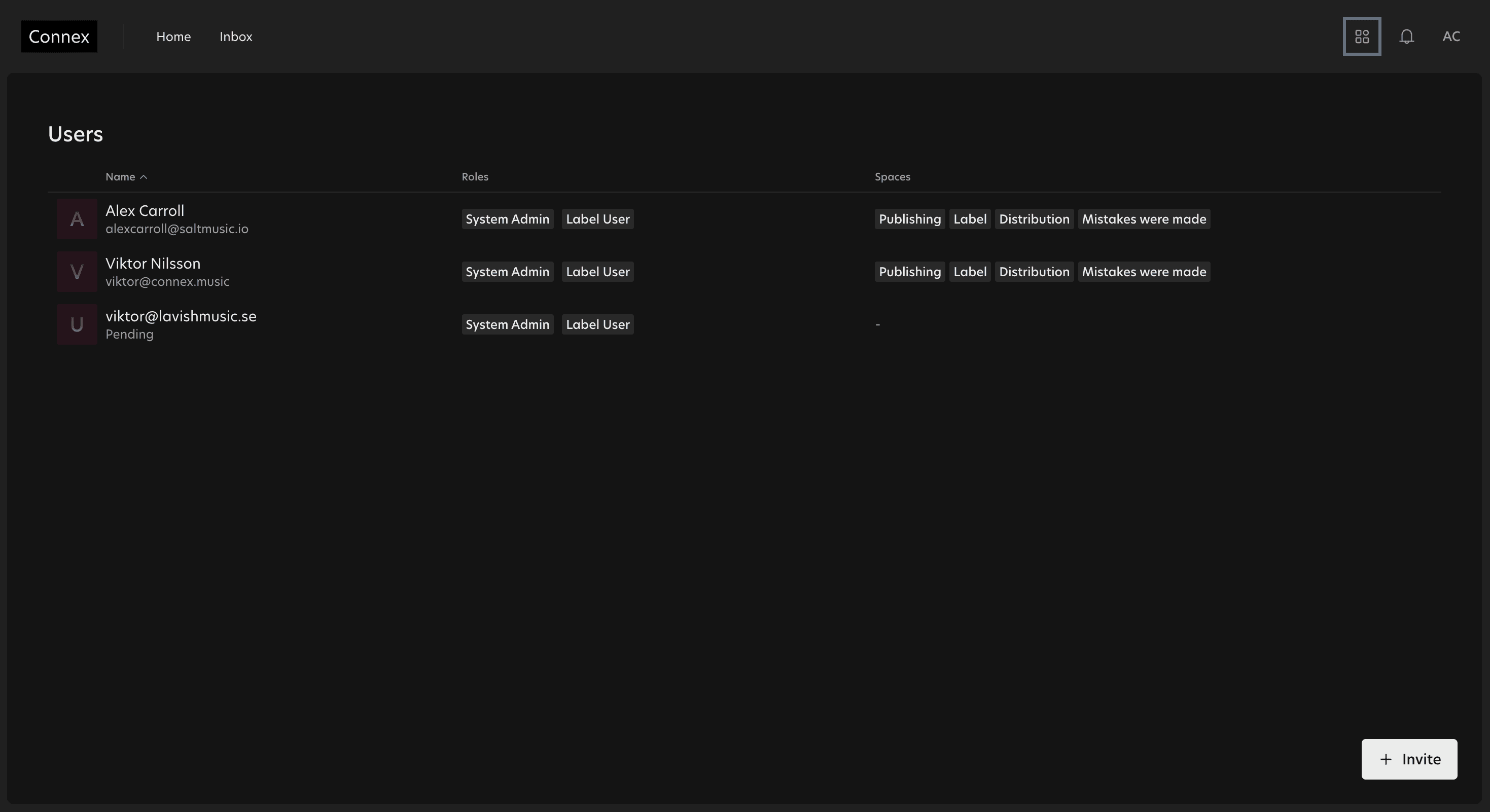
Head to the bottom right hand corner and click invite. 
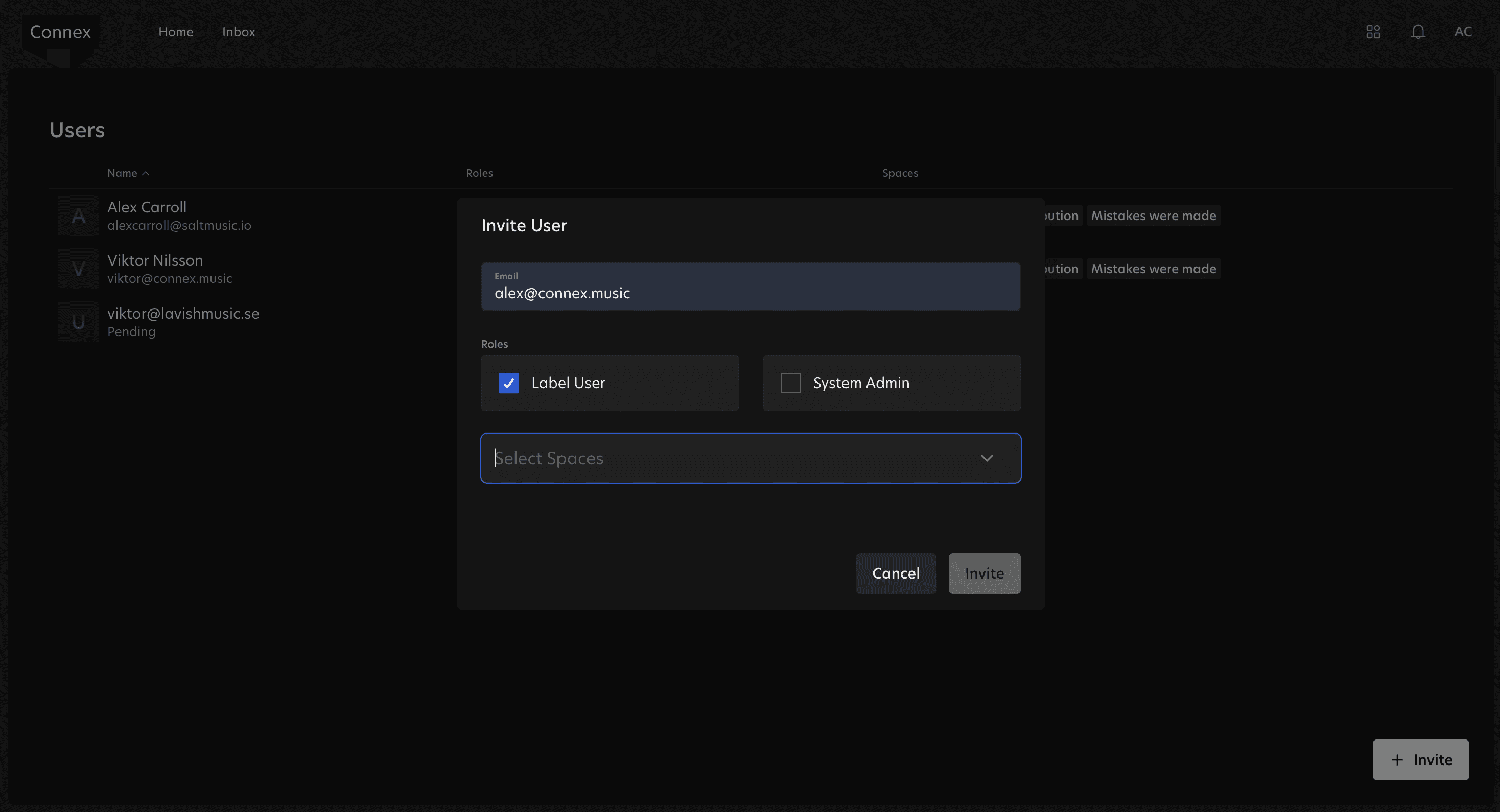
Once you’ve done this you can invite someone else to Connex by entering their email address. 

Choose if you’d like them to be a label user only or a system admin. You can choose to give them both roles.

You then need to assign them to a space. Once the space or spaces have been added to the user, click invite.

The person will then be sent an email inviting them to join Connex. 
 

You can see what spaces users are assigned to within the Users section of Connex.

By clicking on the 3 dots on the far right of a user, you can change the access or delete the user.

Connex

Audio + Metadata.
Managed.

© Connex 2026

© Connex 2026

Connex

Audio + Metadata.
Managed.

Connex

Audio + Metadata.
Managed.

© Connex 2026